

Paint over broken vectorization results, fix them by hand
4.8(6)7Design Tools
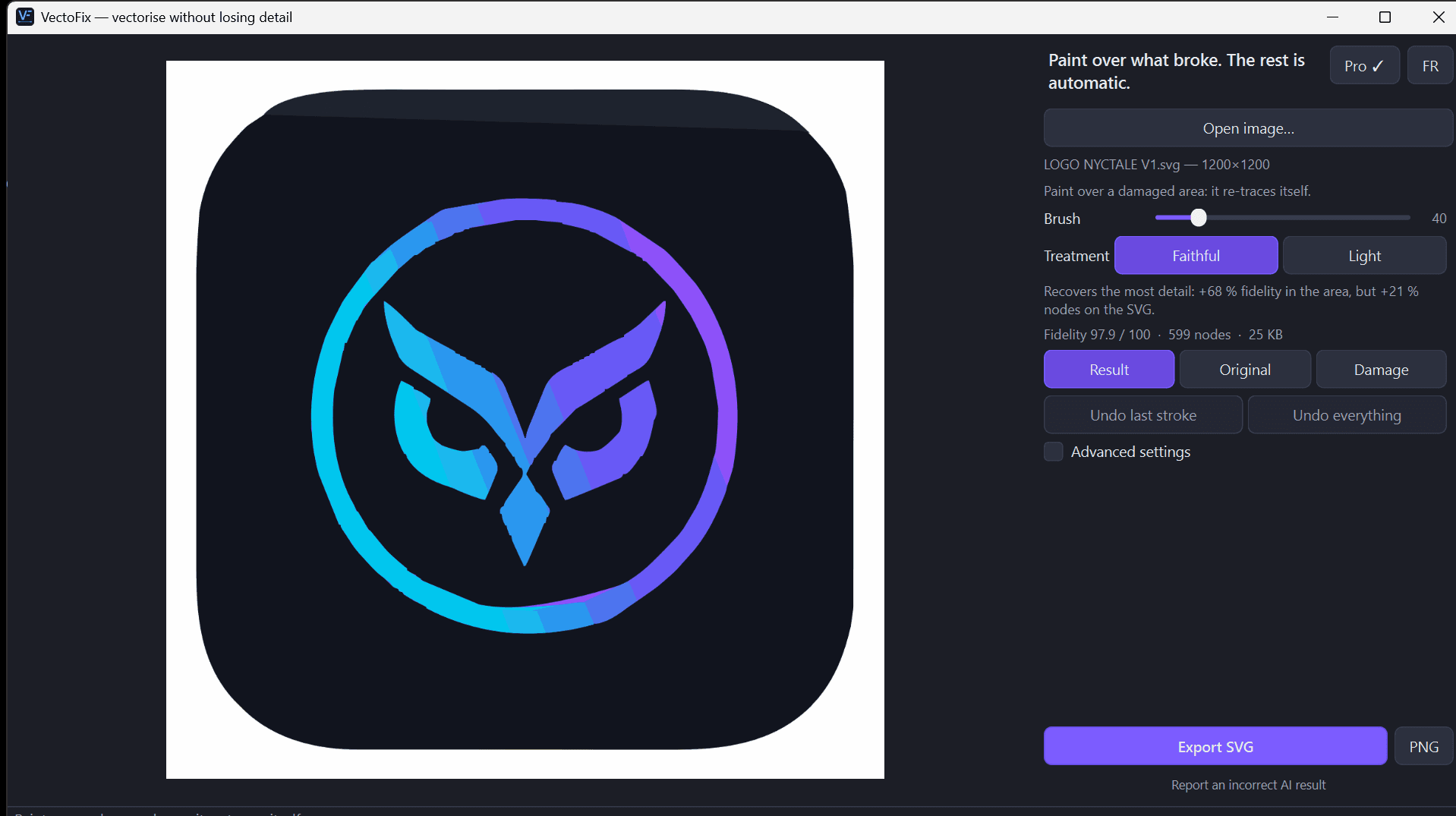
VectoFix is the local repair tool for vector traces that come out wrong. Instead of re-vectorizing the whole image and hoping for a better result, you paint directly over the broken area and VectoFix redraws just that zone — lost gradients, blown-out edges, or a logo that merged into the background. Runs entirely on your device, no upload, one-time €39 license, free trial included.
42 people supporting this launch
4.8
6 ratings

AI video with native sound, paid per clip. Nothing stored.

A calmer Mac menu bar, one click away.

Enterprise Software. Intelligent Automation. Global Impact.


Comments
7Hi, maker here. I built VectoFix after getting frustrated with every vectorizer's usual answer to a bad trace: tweak the global settings and re-run the whole image, hoping it doesn't break something else. VectoFix instead lets you paint over just the broken area and redraws that zone locally, keeping everything else untouched. Happy to answer questions about how the local repair works.
A structured mirror for your life path.
Repainting only the broken zone instead of re-running the whole trace is a smart fix. For scanned logos I usually hit the worst results where thin strokes merge into blobs. Does the local redraw keep the anchor points at the zone boundary aligned with the untouched paths, so there are no seams or gaps when it's printed or cut on a vinyl plotter?
Thanks Xander, thin strokes merging into blobs on scanned logos is exactly the case I built it for. The redrawn zone is clipped to the painted area, so nothing outside it changes (I measured 0% modified pixels outside the zone). I don't snap the new anchors to the existing paths at the boundary, though. The patch is a clean cut at the edge, not a path-by-path join. So on a very thin stroke that crosses the boundary, a hairline seam is possible. In practice I paint a bit beyond the damaged area, and the damage map shows where. For vinyl cutting, I'd check the exported SVG in your cutter software first. I'd rather say that than promise it.
Repairing just the broken zone instead of re-running the whole trace is a smart angle: global settings always fix one thing and break another. How do you keep the redrawn area consistent with the paths around it, so you don't get visible seams at the edge of the painted region? A short before/after GIF on the page would sell this instantly.
Thanks Alessio, that's the idea: global settings fix one thing and break another, so you only retrace the bad zone at higher detail (3x) and paste it back. Consistency with the surrounding paths comes from the clip. The patch can't spill outside the painted zone, and everything else stays untouched. At the edge it's a clean cut rather than a smoothed join, so painting slightly past the damaged area avoids visible seams. Good call on the GIF. I'll add a short before/after to the page.
Hi Fazier 👋 I'm William, solo dev behind VectoFix. I built it after vectorizing the same illustration for the 10th time and having no idea where the trace had gone wrong until I zoomed in on everything by hand. The idea: a vectorizer should measure itself. VectoFix compares its SVG against your source, shows a damage map, and lets you re-trace just the bad zone with a brush. The rest of the file stays untouched. What I'd love feedback on: Is the damage map clear at first glance? Which kind of image gives you the worst results today? (logos, photos, scans, pixel art?) Everything runs locally. The trial has no time limit and no feature lock: only the final export is full precision once you buy. https://www.vectorpop.fr/vectofix
Building PZERO, saving you money - pzero.studio
Painting over just the broken zone and letting VectoFix redraw only that area keeps the rest of the trace untouched instead of re-running the whole image. Teams that want their AI budget to stretch further can find PZERO at pzero.studio.