
Private AI meeting notes for Mac. No bot joins the call.
Meeting Mind is a privacy-first AI meeting notes app for Mac. No bot ever joins your call: it captures audio from Zoom, Microsoft Teams, Google Meet, Webex and more, right from the menu bar. Transcription runs on your Mac by default, and you can optionally choose a cloud LLM provider for summaries. You get searchable transcripts, AI summaries and action items, plus auto-export to Obsidian or Notion and a built-in MCP server so your AI tools can query your meetings. Free for 2 hours a day; Unlimited is a one-time US$14.99 unlock. Mac App Store: https://apps.apple.com/ca/app/meeting-mind/id6751551175?mt=12
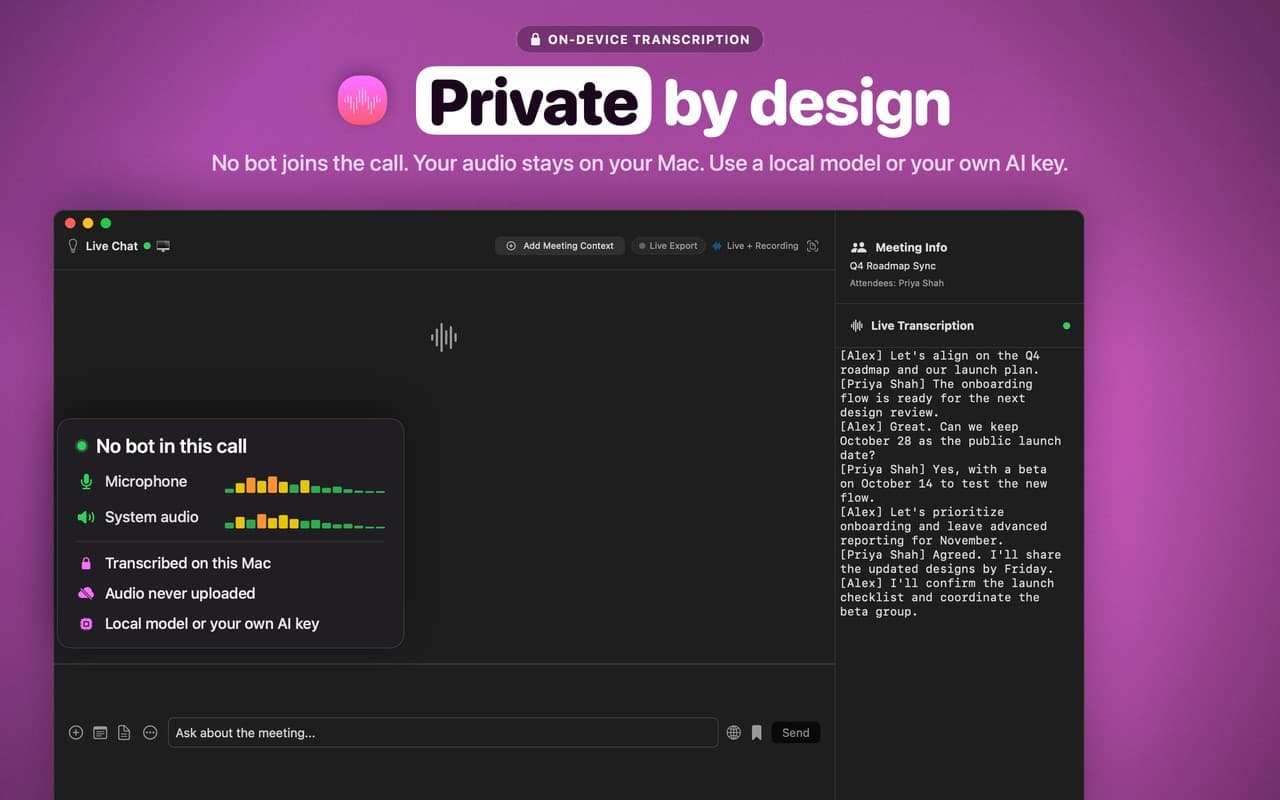
No meeting bot: captures Zoom, Teams, Meet, Webex audio from the menu bar
On-device transcription by default
AI summaries and action items (optional cloud LLM)
Searchable transcripts
Auto-export to Obsidian or Notion
Built-in MCP server for your AI tools
Private notes for client and internal calls
Action items after team meetings
Searchable meeting knowledge base in Obsidian/Notion
4.8
6 ratings

AI video with native sound, paid per clip. Nothing stored.

A calmer Mac menu bar, one click away.

Enterprise Software. Intelligent Automation. Global Impact.


Comments
20Hi Fazier! I built Meeting Mind (by Kilabyte IO) because I was tired of meeting bots joining my calls. It records your Mac's audio from the menu bar, transcribes on-device by default, and gives you summaries, action items, Obsidian/Notion export and an MCP server. Free for 2 hours a day; Unlimited is a one-time US$14.99. Get it on the Mac App Store: https://apps.apple.com/ca/app/meeting-mind/id6751551175?mt=12 . Would love your feedback!
does speaker labeling work on-device too, or only when you turn on the cloud llm for summaries? the obsidian auto export is a great touch for keeping a searchable meeting log.
Yes, it's all on-device. Transcription runs locally on NVIDIA's Parakeet and Nemotron models, speakers are separated with NVIDIA diarization, and names are filled in from your meeting invite. The cloud LLM only comes in for summaries, and only if you turn it on. Glad the Obsidian export is useful!
Mac developer. Building Command Reopen.
Capturing Zoom, Teams, and Meet from the menu bar instead of dropping a bot into the call is the right privacy tradeoff, especially with on-device transcription as the default and a cloud LLM only when you want summaries. The MCP server plus Obsidian or Notion export is what makes the notes usable after the meeting, not just stored in another app. One Mac-specific question: does menu-bar audio capture need the Screen Recording permission, and do you warn people before the first call so the system prompt is not a surprise mid-meeting?
Not anymore. Early versions used the Screen Recording permission only because, before Apple added a dedicated system-audio permission, that was the only way to capture system audio. Apple reviewed it and confirmed we never recorded the screen. Since 1.5.3, Meeting Mind only asks for Microphone and System Audio Recording, and if you're updating from an older version, the menu bar shows a one-time prompt so you can grant it before your next call instead of mid-meeting.
Running transcription on-device by default is the right privacy call. Curious how the free 2 hours a day limit behaves when you have back-to-back calls: does it reset at midnight, or is it a rolling window? The Obsidian export looks genuinely useful for building a searchable meeting log.
Good question! The free 2 hours reset at your local midnight. And if you go over during a call, we never cut you off: the recording keeps going until you're done, and new recordings just wait for the reset. If you're on back-to-back calls most days, Unlimited is a one-time US$14.99 with no time cap.
Building ometv.media – free random video chat, no sign-up needed.
The no-bot approach solves a real social problem, not just a technical one — I've been on calls where the 'recording bot joined' announcement visibly changed how people talked. Capturing from the menu bar keeps the room natural, and on-device transcription by default is the right privacy call. My question: how do you handle consent and notification? Without a bot announcing itself, the disclosure responsibility shifts to the user — do you surface any reminders to tell other participants they're being recorded?
Totally agree. Dropping the bot moves disclosure onto the person recording, and we're upfront about that: the app's terms ask you to tell everyone before you record and to follow your local recording laws. A quick "mind if I record for notes?" at the start of a call goes a long way.
yes
Making on-device transcription the default while keeping cloud summaries optional gives teams a practical privacy boundary. The Obsidian/Notion export plus MCP access looks particularly strong for turning meeting notes into a usable knowledge base. A clear indicator of whether a summary used a cloud provider would make that boundary even easier to manage.
Thanks! A clear "summarized with [provider]" tag on each meeting is a great idea for keeping that boundary visible. Adding it to the list.
The no-bot approach is the standout feature for me. I've been on calls where a meeting assistant announces itself and the client immediately goes quiet — it changes the dynamic completely. Capturing audio locally from the menu bar sidesteps the whole problem. Question for the maker: does the on-device transcription handle speaker diarization for multi-speaker meetings, and how does it perform in noisy environments like cafes or airports?
Love that transcription stays on the Mac by default, that is exactly what makes it usable for client calls. When the cloud LLM option is switched on, is only the transcript text sent for the summary, or any audio too? A clear note about that on the settings screen would help people decide.
How does the on-device transcription handle calls that switch languages mid-meeting, say English and Arabic? That mix is common on teams in the Middle East.
A one-time $14.99 unlock instead of another monthly plan is refreshing for a notes tool. I sell my own Mac apps the same way and people really notice it. A practical question from my setup: I often switch from the MacBook speakers to AirPods partway through a call. Does capture follow the output device when it changes mid-meeting, or does it need a restart? And is the MCP server only available while the app is running?
A structured mirror for your life path.
Love that no bot joins the call and transcription stays on the Mac by default. The auto-export to Obsidian is a nice touch too, it turns meeting notes into something you actually revisit instead of a pile of recordings.
Since it captures from the Mac instead of through a bot, do you keep the microphone and the call audio as separate tracks? That split gives you a free "me vs. them" label even before any diarization. And when someone takes a call on laptop speakers, the mic also picks up the other side, so I'm curious whether the transcript de-duplicates that echo or shows those lines twice.
Solo founder of MetaPodcast, a free AI podcast app for iOS & Android.
The privacy angle is genuinely differentiated — enterprise teams will care that no bot joins and transcription stays on-device. One question for the roadmap: does speaker labeling run on-device too, or only when cloud summaries are enabled? Accurate on-device diarization would be a killer feature for confidential client calls where nothing can leave the machine. Congrats on shipping!
Preparing iPhone Duo screenshots for App Store Connect.
The Obsidian/Notion export plus built-in MCP server makes these notes useful beyond the meeting. Since transcripts can contain client details, a read-only mode scoped to selected meetings or summaries would give AI tools useful context without exposing the whole archive. Does the MCP server already support that kind of per-meeting scope?
Co-founder of this+that. Penn NLP Ph.D. Ex-Microsoft, Google, Meta. 5x startup co-founder.
Running locally with no bot in the call is the right call for a lot of teams. What happens to the action items afterwards? Can they go to a task list or tracker, or do they stay in the notes?